Tour of the editor
Open a show and you land in the editor, built around one room at a time in a live 3D view.
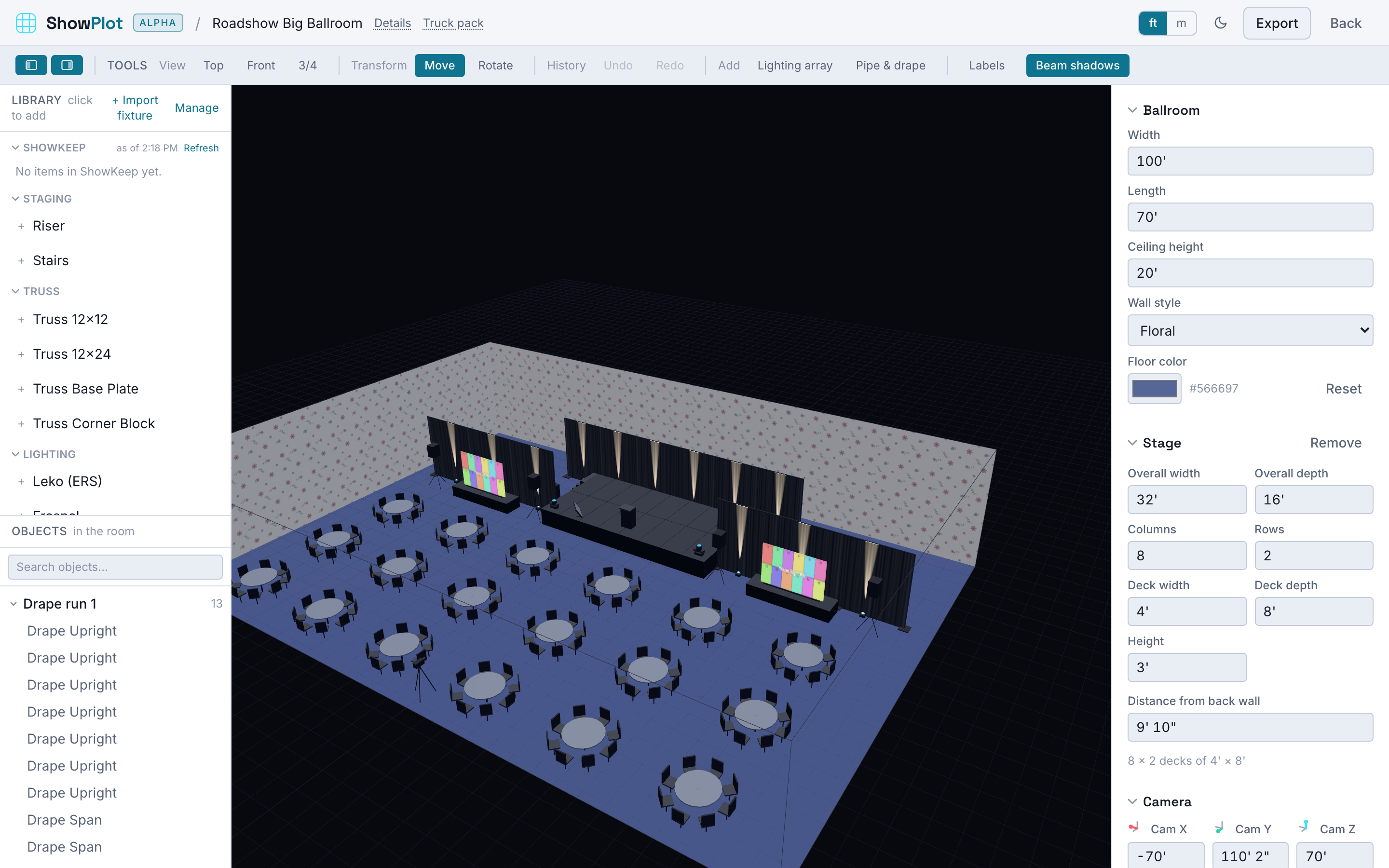
The 3D viewport
The middle of the screen is your room in three dimensions. Drag to look around, scroll to zoom, and hold space while dragging to slide across the floor without changing your view direction. When you just want a clean angle, the toolbar's View buttons jump straight to Top (plan view from above), Front (the audience's view), or 3/4 (a three-quarter house view).
The toolbar
Across the top you get, left to right:
- View: the camera presets above.
- Transform: Move and Rotate for whatever you have selected.
- History: Undo and Redo.
- Add: quick-start tools like the lighting array and a pipe and drape run.
- Labels: shows each object's name and address above it in the viewport.
- Beam shadows: toggles whether lighting beams stop at solid objects, useful to switch off on a slower machine.
The side panels
Two panel icons at the left of the toolbar show or hide the side panels:
- Left panel: your gear Library on top (search and place fixtures, staging, and more), and the Objects list below it (everything currently placed in the room, with lock and hide controls).
- Right panel: Properties for whatever is selected, or a room-level summary (including any DMX address conflicts) when nothing is.
The header bar
The bar above everything shows the show's name, a Details link for client, venue, and dates, a Truck pack link, your save status, a ft/m unit toggle, and the export menu.
You don't need to save by hand. Watch the small status text near the show name: it tells you when a change is saved, still saving, or waiting to sync.
How a show is organized
A show is one project built around a room, which carries a stage when its room type calls for one. Everything you place lives in that room as objects, and you can group related objects together to move, lock, or hide them as a set.