Scan gear in and out
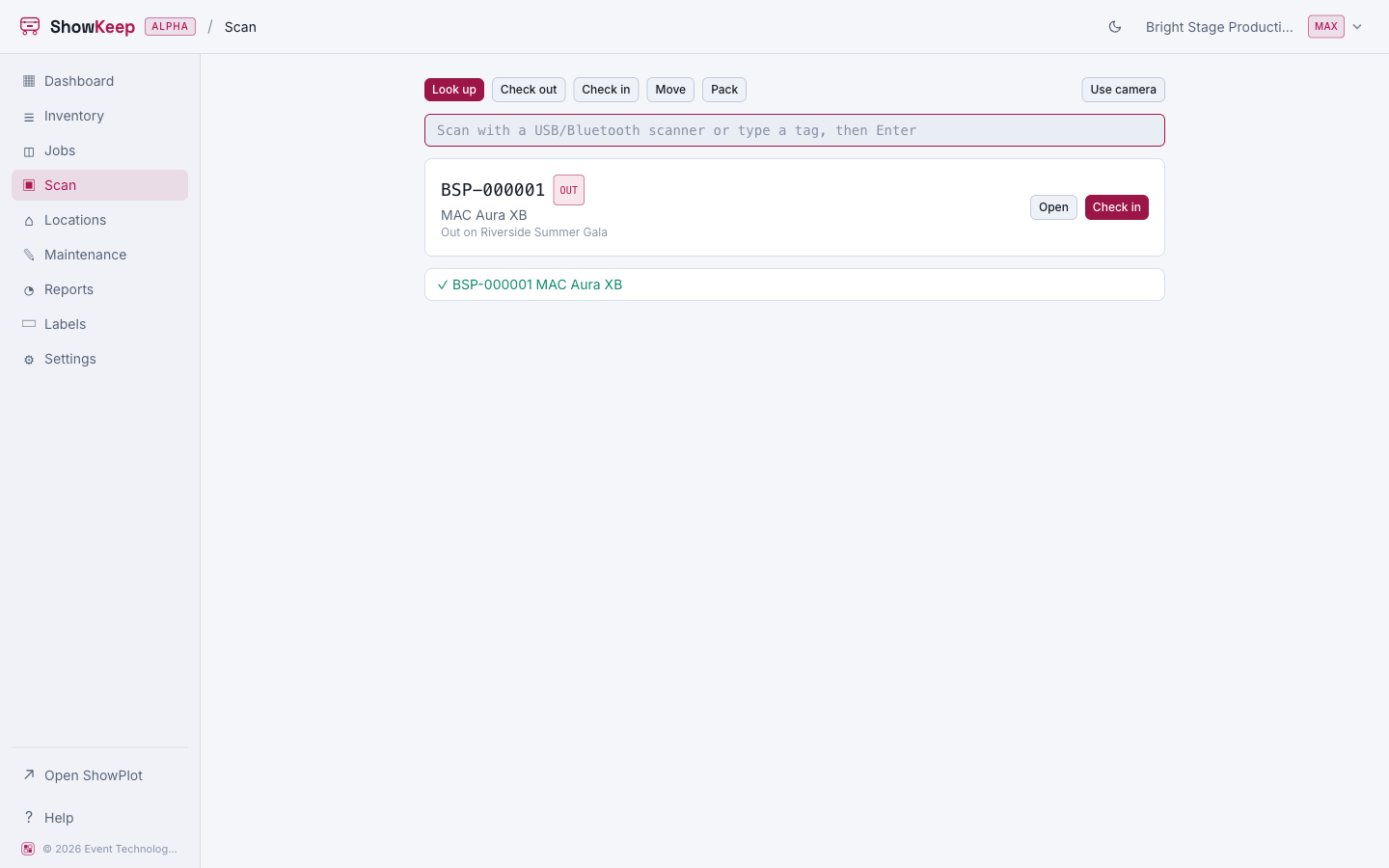
The Scan screen is built for the loading dock: fast, one-handed, and just as happy with a phone camera as with a USB or Bluetooth barcode scanner.
Getting a tag in
Scan with your phone's camera (choose Use camera), or plug in a wedge scanner and scan into the text field, which submits automatically on Enter. You can also type a tag by hand. Every scan gets a short log entry and a buzz of vibration, a longer pattern when something goes wrong.
Modes
| Mode | What it does |
|---|---|
| Look up | Shows a unit's or item's current status, with quick actions to open it, check it out, or check it in. |
| Check out | Pulls a scanned unit onto the job you pick first. |
| Check in | Returns a scanned unit, with a condition (good, damaged, missing) and where it goes back to. |
| Move | Relocates scanned units to a location you pick first, without touching a job. |
| Pack | Opens a scanned case, then packs whatever you scan next into it. |
Look up and Move work on every plan. Checking gear onto or off a job needs the Pro plan or higher.
Pack mode
Scan a case to open it, then scan units, bulk items, or other cases into it. Scanning the open case again, or pressing Done, closes it. A bulk item asks for a quantity and needs a job selected first. If the case is dedicated to other gear, the scanner asks you to confirm before packing something foreign into it.
Checking a damaged unit in during Check in mode opens a maintenance ticket for it automatically.
Related
- Jobs: create, check out, return
- Cases: dimensions, homes, and residents
- Print QR labels for what you are scanning