Print QR labels
Every serialized unit and every bulk item with a SKU can carry a label with both a QR code and a Code 128 barcode, so it scans with a phone camera or a wedge scanner.
What a label carries
- A QR code that opens the unit's page in ShowKeep on any phone camera, no app needed.
- A Code 128 barcode of the same tag, for USB or Bluetooth wedge scanners.
- The item name, and the serial number or model underneath.
- Your organization's name, if you leave that option on.
Print labels for a selection
From Inventory, tick the checkboxes next to the items you want and choose Labels (n). From a single item's page, choose Labels to grab every one of its serialized units. From a single unit's page, choose Label for just that one. Bulk items need a SKU set before they can get a label.
Choose a format and build the sheet
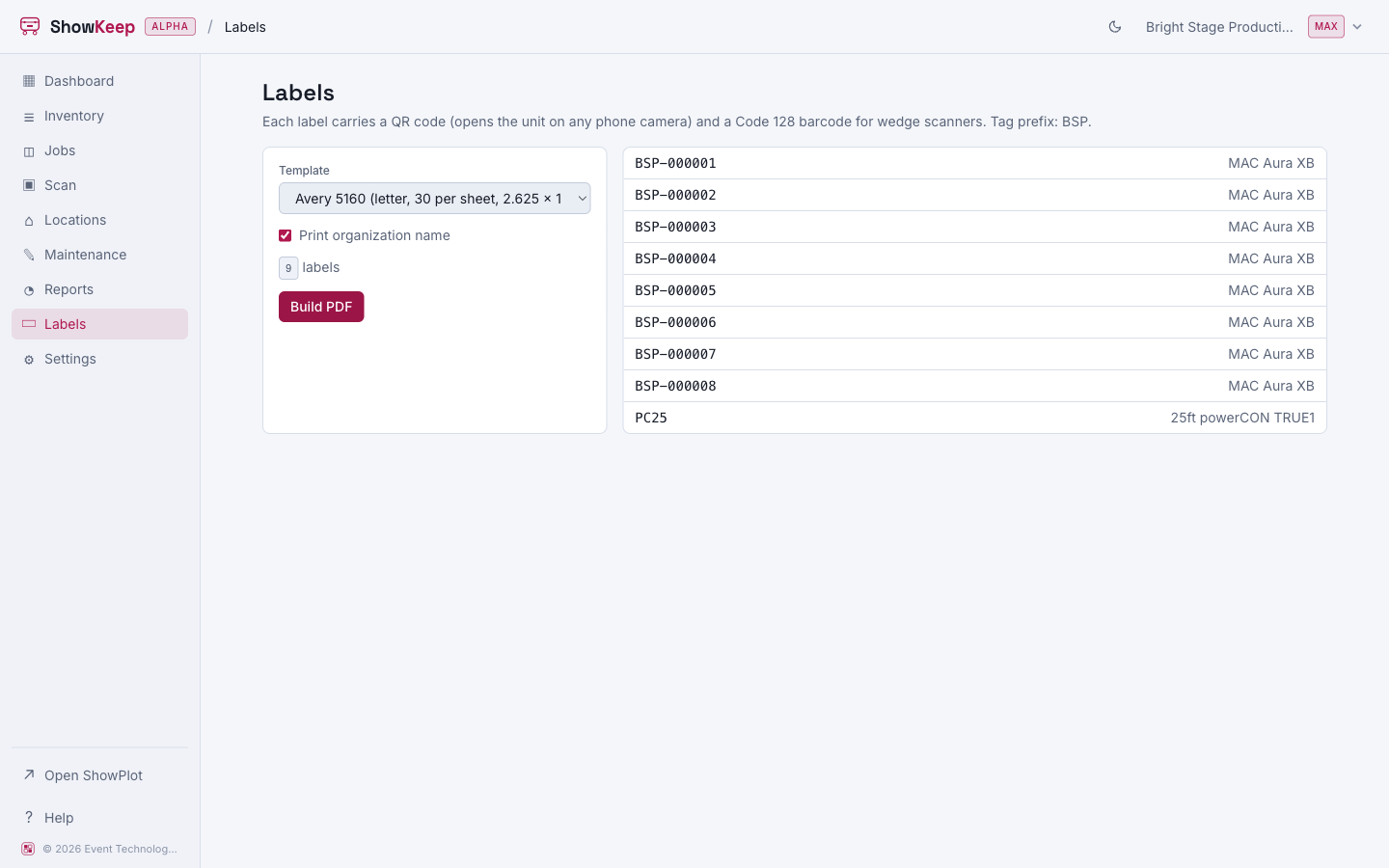
On the Labels screen, pick a template:
| Template | Use it for |
|---|---|
| Avery 5160 | Standard letter sheets, 30 labels per page. |
| Thermal 2 x 1 in | A single label per print, on a thermal roll printer. |
| Thermal 4 x 2 in | A larger single label per print, same kind of printer. |
Choose Build PDF, and it opens in a preview pane you can print straight from the browser, or open in a new tab first.
Adding a batch of new units through Add inventory is the moment to print labels: select them all from the item's Units tab with Print all labels and run one sheet for the whole batch.
Related
- Scan gear in and out to see what these labels are for once they are printed.
- Print manifests for per-case and per-job packing lists.