Jobs: create, check out, return
A job is a show or a rental with dates. It is the unit ShowKeep uses to hold a pull sheet, check availability, and track what has actually left the building.
Create a job
From Jobs, choose New job and set:
- Name, client, and venue.
- Prep / load out, show start, show end, and return due dates.
- Billable days, for the quote.
These dates are what availability checks against, so get them right before you build the pull sheet.
Build the pull sheet
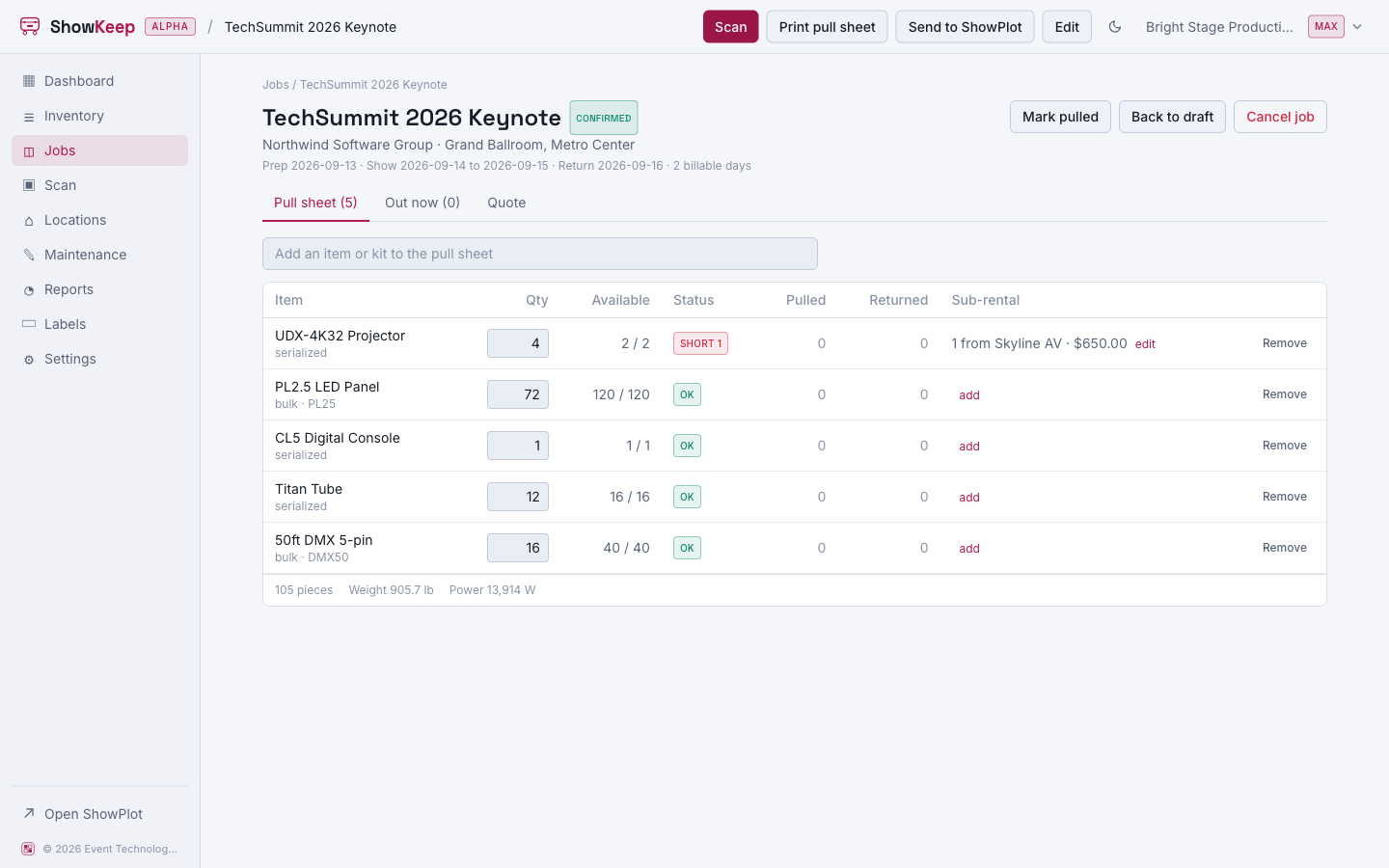
Search for an item or a kit and add it to the job with a requested quantity. Each line shows what is available for the job's dates and flags a shortage in red if you are asking for more than you have free. You can cover a shortage with a sub-rental: a vendor, a quantity, and a cost that counts against the request but not your own stock.
Statuses
A job moves through draft, confirmed, pulled, out, returned, and closed, or cancelled at any point before it closes. Confirming a job with shortages asks you to confirm anyway; closing or returning a job that still has gear out asks whether to write those units off as lost.
Check out and check in
Once a job is confirmed, choose Scan to check gear out or back in by scanning tags, right from the job page or from Scan gear in and out. Checking a unit in as damaged opens a maintenance ticket and takes it out of service automatically.
Checking gear out and back in against a job requires the Pro plan or higher.
The trail
The Out now tab shows exactly what is out right now, grouped by case. Every checkout, check-in, and adjustment is recorded on the item's and unit's History tabs, and on the audit log.