Categories, kits, and CSV import/export
Once you have more than a few dozen items, organizing and bulk-editing them matters as much as adding them one at a time.
Categories
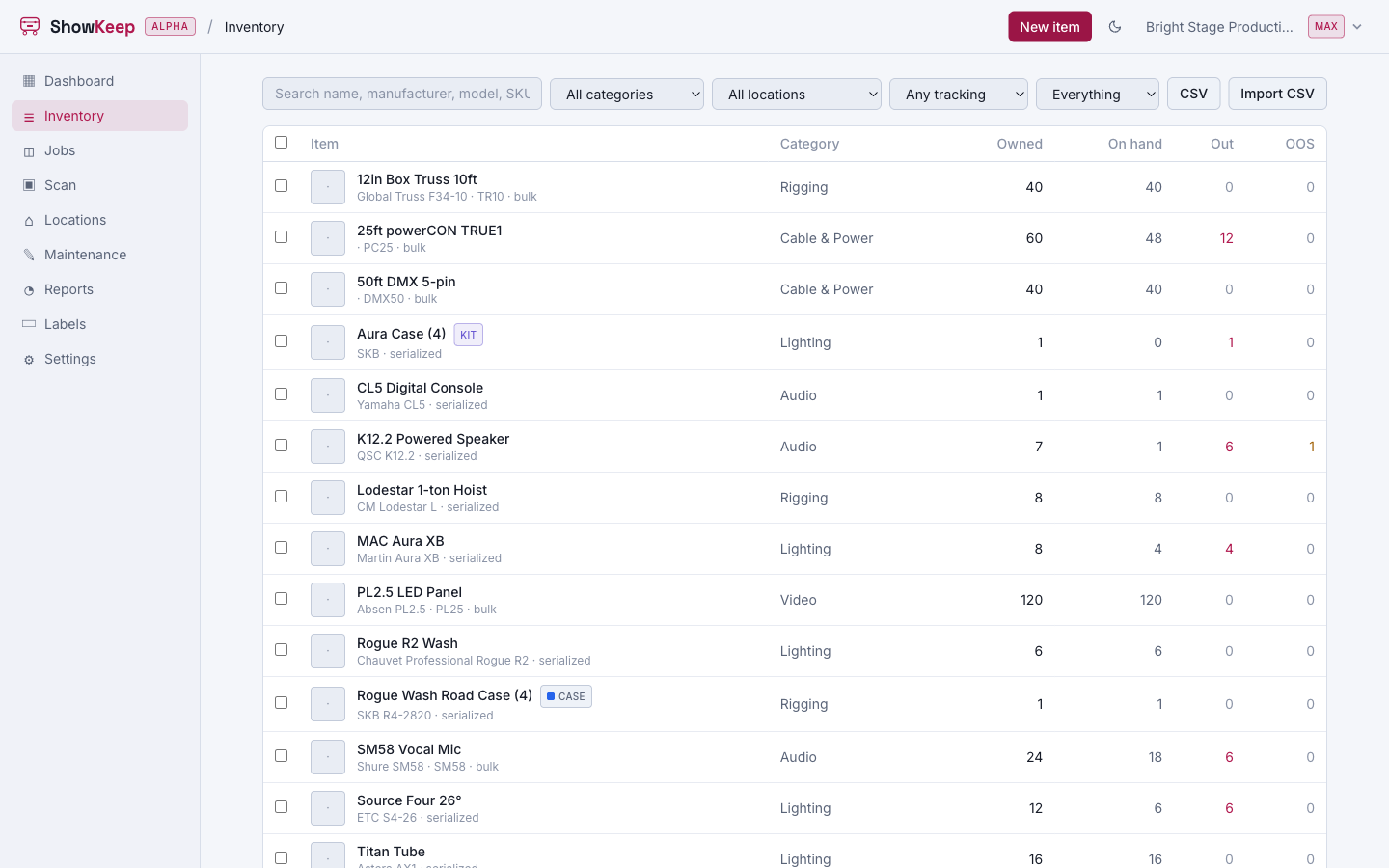
Categories are a flat, org-wide list, Lighting, Audio, Cable, whatever groups make sense for you. Add and rename them under Locations (categories live alongside the location tree). Assign a category when you create or edit an item, and use it as a filter in Inventory. Deleting a category does not delete its items; they just become uncategorized.
Kits
A kit is a standard bundle of items you pull together, a lighting package, a DJ rig. Tick This is a kit on an item, then add its contents on the Kit contents tab: search your inventory and set a quantity for each. Adding the kit to a job's pull sheet reserves its contents too, and checking the kit out scans its packed units along with it. A kit is a shopping list; it is a different thing from a case, which is a physical container with real dimensions and weight.
CSV import
From Inventory, choose Import CSV to load or update items in bulk. Expected columns: name, manufacturer, model, category, tracking_mode, sku, qty, location, weight_kg, power_w, rental_rate_day, replacement_value, notes, plus case columns when you are importing cases (is_case, case_type, int_w_m, int_d_m, int_h_m, caster_size_in, caster_capacity_kg, capacity_kg, rack_spaces, stackable, rider, no_flip, color, home_case, qty_per_case).
Rows are matched to existing items by SKU, or by name plus manufacturer plus model, so re-importing an updated sheet updates items instead of duplicating them. A row with no name is skipped, and the import stops adding new items once your plan's item limit is reached.
CSV export
The CSV button on Inventory downloads your full catalog with the same columns, ready to edit in a spreadsheet and re-import, or hand to an accountant.