Add inventory: items and units
ShowKeep separates what a thing is from the physical copies you own. Getting this distinction right up front makes everything downstream, availability, checkout, reports, work correctly.
Items versus units
An item is the catalog entry: a Mac Aura XB, a 25 ft powerCON extension, a Pelican case. You give it a name, manufacturer, model, category, specs, and photos once.
A unit is one physical copy of a serialized item, with its own asset tag, serial number, and condition. Bulk items skip units entirely and track a simple quantity per location instead.
Add an item
From Inventory, choose New item and fill in:
- Name, manufacturer, model, and category.
- SKU (bulk items scan by SKU; it doubles as the barcode).
- Weight, dimensions, power draw, and connectors.
- Day rate, replacement value, and insured value.
- Photos, and on Pro and Max, GDTF fixture files, 3D models, and other documents.
Bulk versus serialized
Choose Tracking when you create the item:
- Bulk quantity: cable, gaffer tape, connectors, anything you count rather than individually identify. You stock it at locations and adjust the count as it moves.
- Serialized units: fixtures, consoles, anything you need to track individually. Each unit gets its own auto-generated asset tag.
Once an item has stock or units recorded against it, its tracking mode is fixed. Decide up front.
Add units to a serialized item
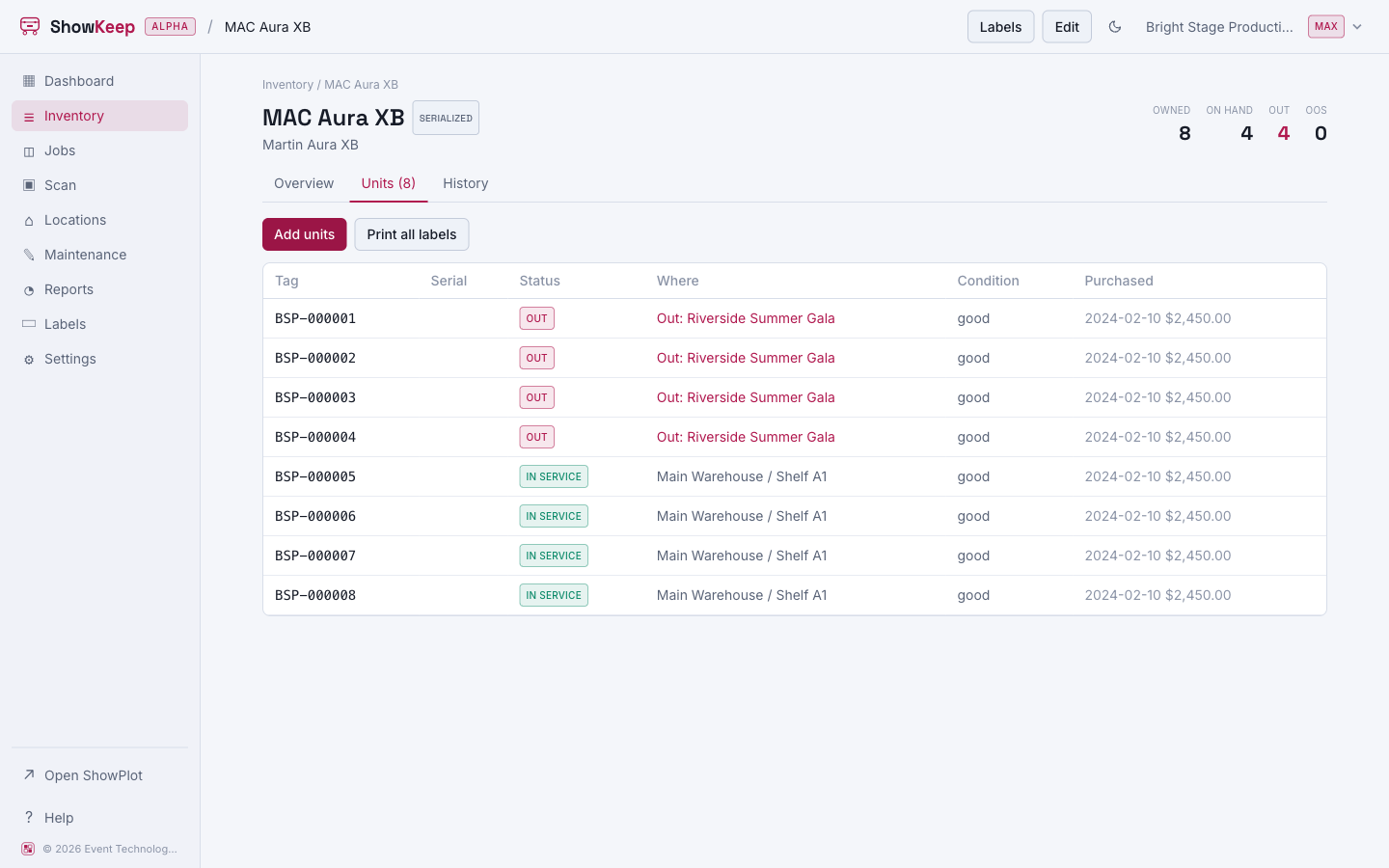
On the item page, open the Units tab and choose Add units. Set how many to add, paste serial numbers (optional, one per line), a starting location, and purchase details. Asset tags are assigned automatically, and each new unit starts in condition good.
Related
- Print QR labels for the units and SKUs you just added.
- Categories, kits, and CSV import/export to load a large catalog at once.