Get paid online
ShowBill can put a pay link on every invoice so your client pays by card instead of mailing a check. This is a Pro feature.
Connect your Stripe account
Go to Settings > Online payments and select Connect Stripe. This hands you off to Stripe to link your own account. ShowBill never holds your money: payments go straight to your connected Stripe account, and you keep 100% of every payment. ShowBill's subscription fee is billed separately, through your ShowSuite plan.
Only an organization owner or admin can connect or disconnect Stripe. If your account still needs a few details before it can take charges, Settings shows Finishing setup with a button to continue on Stripe.
Share the pay link
Once Stripe is connected, every saved invoice shows an Online payment panel with a link you can copy and send to your client, plus a Preview pay page link so you can see exactly what they will see. The link is not shown on estimates, only on invoices.
What your client sees
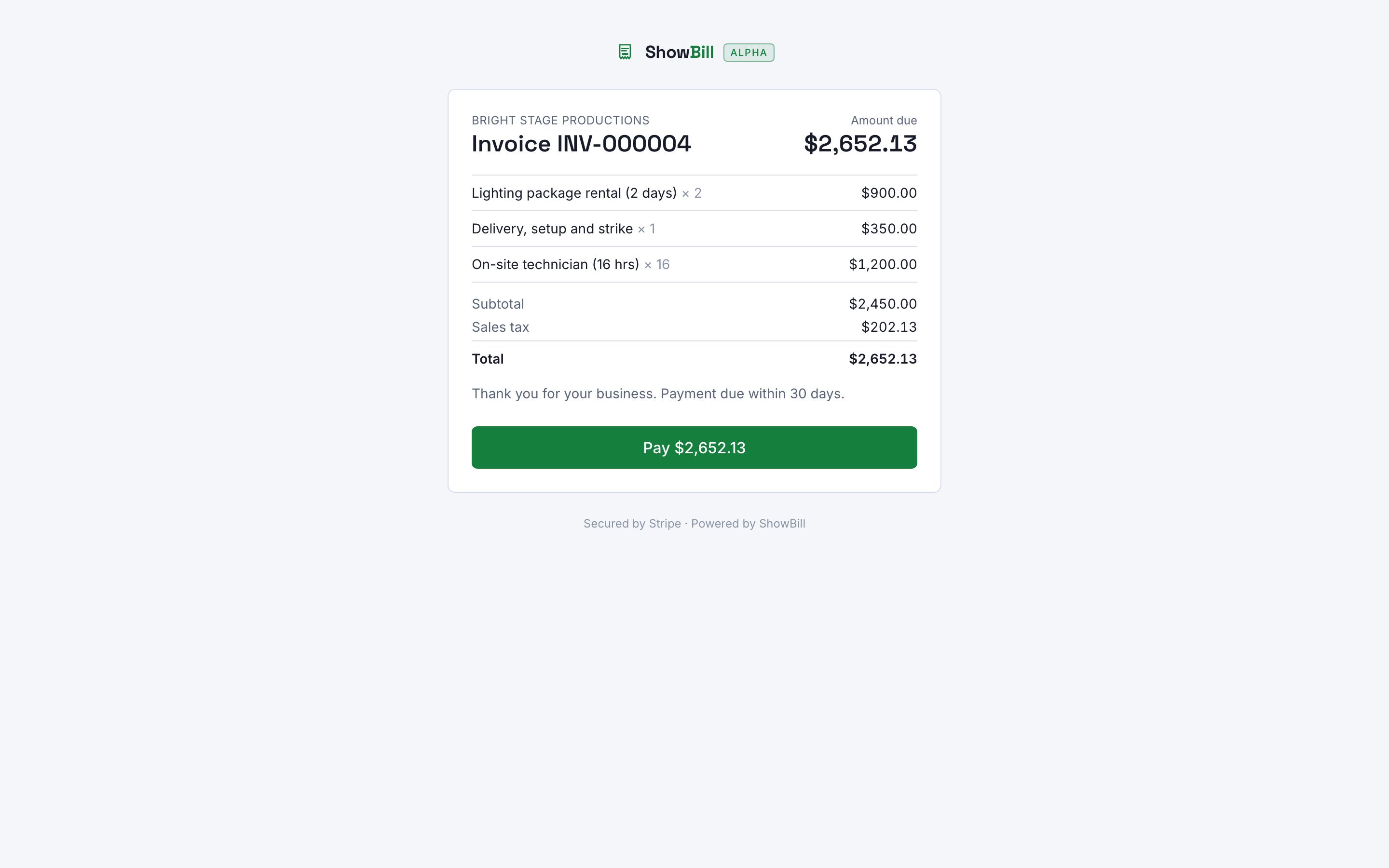
The pay page shows your business name, the invoice number, the line items, and the amount due, with a Pay button. That button opens Stripe's own checkout, so your client enters their card details on Stripe, not on ShowBill.
When a payment comes in
The invoice status flips to Paid automatically as soon as the payment completes. If a client pays you outside of Stripe, cash or a check for example, mark the invoice paid yourself with the Mark paid status button, no online payment required.
Pro also unlocks billing clients in a currency other than your organization's default. See Recurring invoices and reminders for the full currency list.