Seats, invites, and roles
Seats are shared across the suite
Your plan includes a number of seats, and that pool is shared across every app in your organization, not counted per app. A teammate who opens ShowPlot and ShowKeep still uses exactly one seat. Your organization's seat limit is the largest seat count of any tier it holds, so buying ShowKeep Max (10 seats) covers the whole organization even if ShowPlot stays on Pro (3 seats).
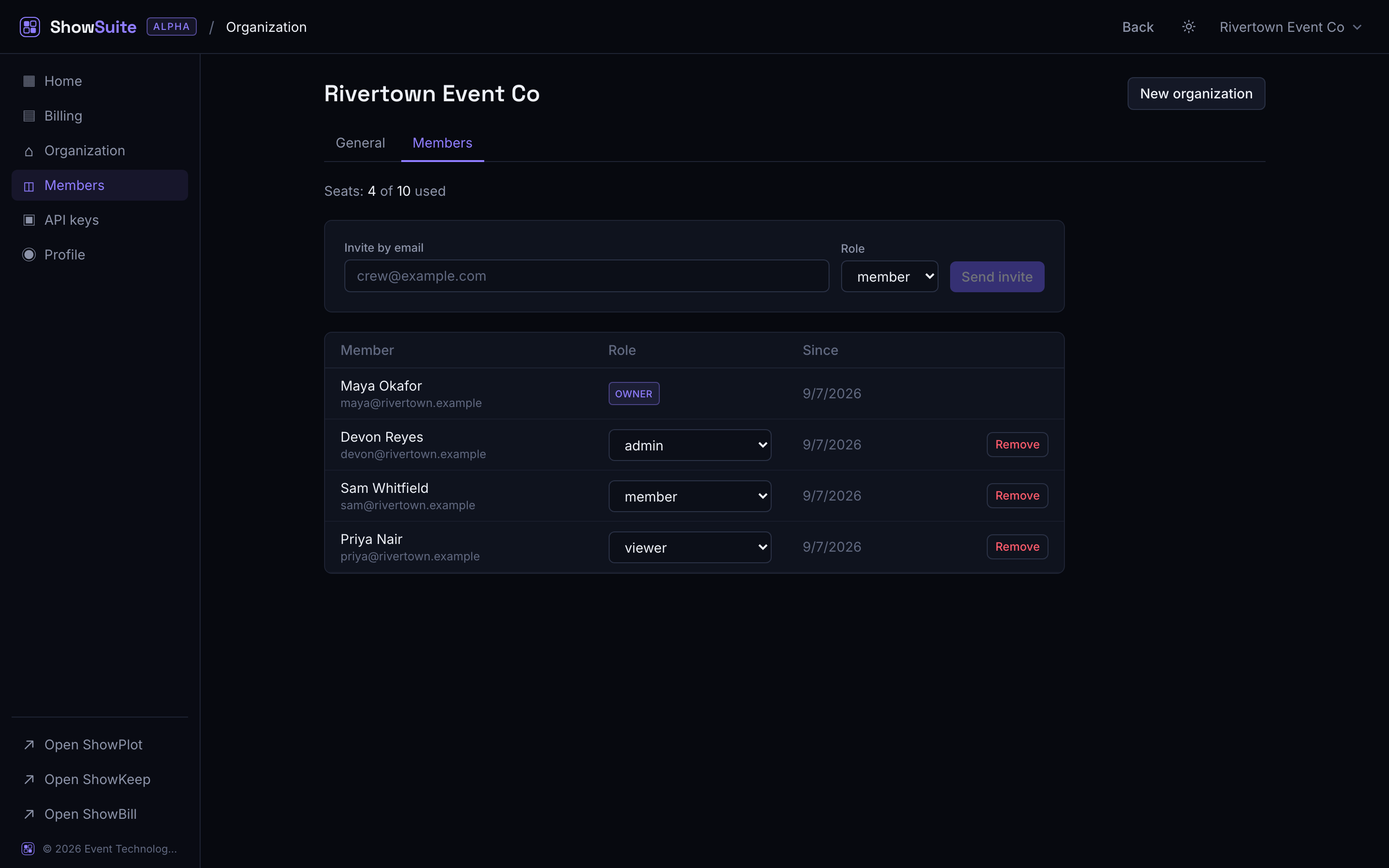
Check current usage on the Billing screen or under organization settings: it shows seats used out of seats available.
Inviting a teammate
- On the account hub, open organization settings and go to Members.
- Enter their email and pick a role.
- Send the invite. They get an emailed link; accepting it adds them to your organization with the apps and plan you already pay for.
An invite that has not been accepted still shows in the list, and you can revoke it before it is used.
Freeing a seat
Removing a member from organization settings frees their seat immediately, so you can invite someone else right away. Revoking a pending invite also frees the seat it was holding.
If your seat count is full, invites are blocked until you remove someone or upgrade to a tier with more seats. See Manage your subscription.
Roles
| Role | Can do |
|---|---|
| Owner | Everything, including billing, changing plans, and every admin ability. Set automatically for whoever creates the organization. |
| Admin | Manage members, invites, and organization settings; use every app at the plan's tier. Cannot touch billing. |
| Member | The day-to-day work in the apps: shows, inventory, invoices. Cannot manage members or settings. |
| Viewer | Read-only. Can see shows, inventory, and invoices without changing anything. |
Only the owner can change billing (see Manage your subscription), and only owners and admins can manage members or create API keys.