API keys
API keys give scripts and integrations read-only access to your organization's data in a given app. They are managed from the account hub, not inside the product apps.
Where to find them
Open account.showsuite.cc and go to API keys. If your organization uses more than one app that offers keys, you will see a tab per app: keys for ShowKeep are separate from keys for ShowBill, and each is scoped to that one app's data.
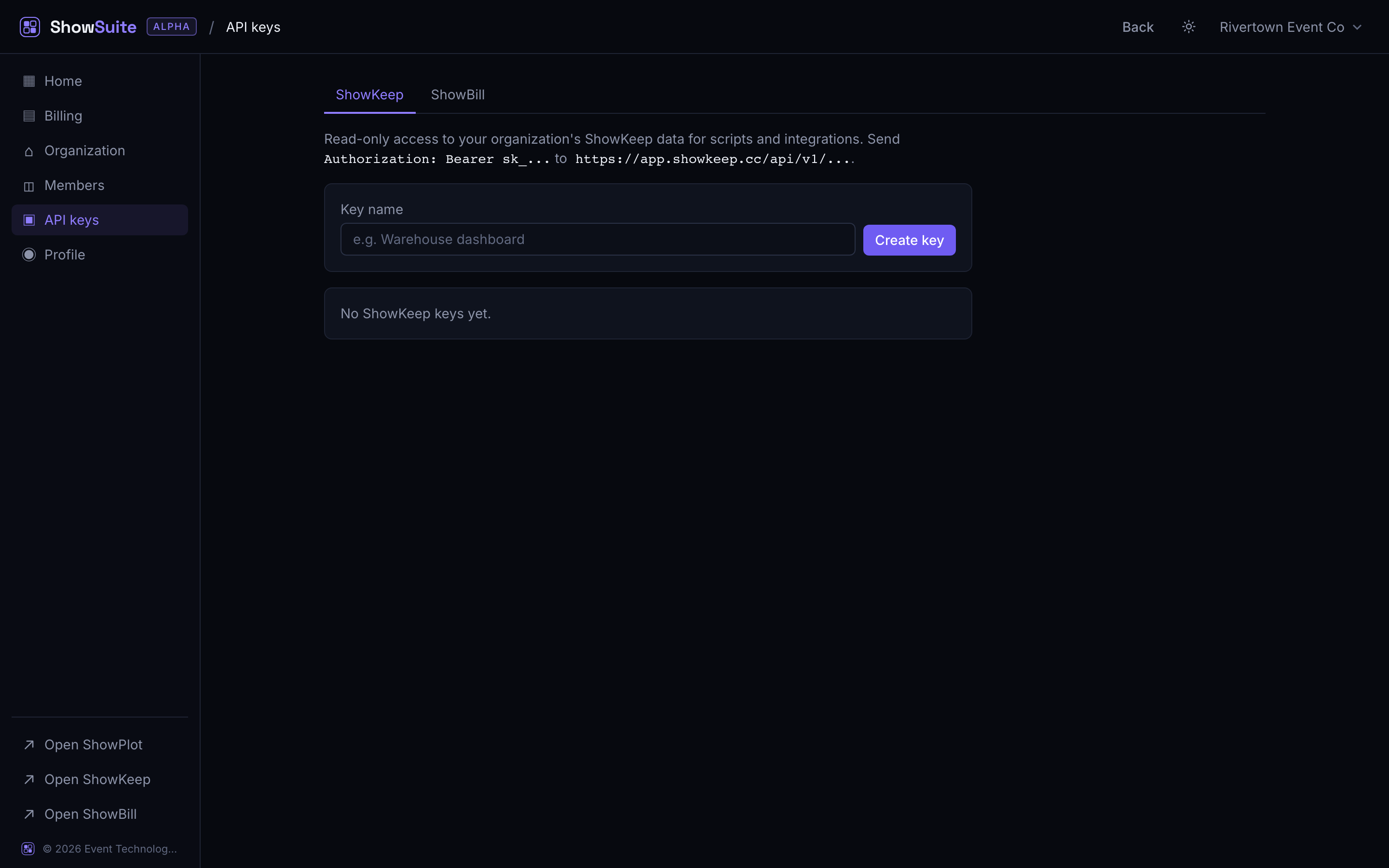
API keys are offered per app as each app's public API ships. Check the tabs on the API keys screen for what is currently available.
Who can manage them
Creating, viewing, and revoking keys is an owner or admin action. A key belongs to the organization, not to the individual who created it: any owner or admin can see and revoke a key someone else made, and it keeps working for whoever holds it until it is revoked.
Creating a key
- Pick the app's tab.
- Give the key a name that says what it is for, for example "Warehouse dashboard".
- Click Create key. The full key is shown once, immediately after creation. Copy it somewhere safe right away; the account hub only ever shows the prefix afterward.
Keep keys secret
Treat an API key like a password: anyone who has it can read your organization's data in that app for as long as the key is valid.
Never paste an API key into chat, a public repository, or client-side code a browser can read. If a key may have leaked, revoke it immediately and create a new one.
Revoking a key
Click Revoke next to any key. This takes effect immediately: anything still using that key stops working right away. Revoking cannot be undone; create a new key if the integration needs to keep running.
Max feature
API keys need the Max tier for that app, or the bundle. On a lower tier, existing keys stay listed but stop working, and creating a new one is blocked until you upgrade. See Manage your subscription.